A Guide to Mastering the MPG CORELIQUID P13 Display: HUDs, Animations, Videos, and More!
Case & Components
If you’re a gamer and enthusiast, your rig needs to push high frame rates while serving as the centerpiece of your setup. Now, if you’re also into tracking how your hardware is doing, it usually means picking between cluttering your screen with temperature overlays or flying blind to preserve immersion.
But what if you don’t need to pick between these two options? Another component can shoulder the responsibility of displaying the info you need, without you needing to sacrifice any screen real estate at all.
The latest evolution of this philosophy is the MSI MPG CORELIQUID P13 Series. With its integrated 2.1-inch IPS display with a seamless curved design, the P13 transforms from a regular component into a dynamic, elegant dashboard, giving you a second screen exactly where you need it most – right at the heart of your PC.
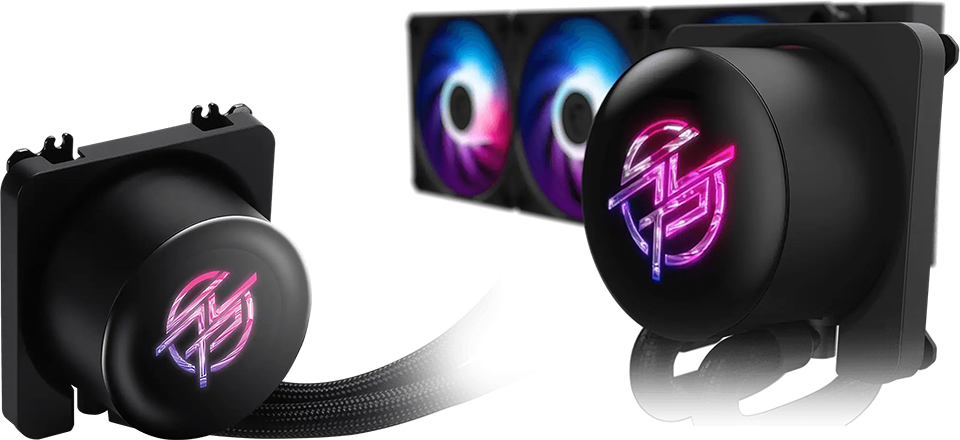
When combined with MSI Center, you can access the full functionality built into the MPG CORELIQUID P13 to give you the flexibility you need to customize it the way you want.
Let’s go over a few ways you can use and control this display!
Instant System Health Check: The Startup Animation
The process of hitting that power button and watching your PC spin to life is oddly satisfying, and the MPG CORELIQUID P13’s 2.1-inch display adds another layer to that experience. As soon as your system powers on, the display activates an elegant startup animation. It’s an instant confirmation that your pump is active and your system is booting up!
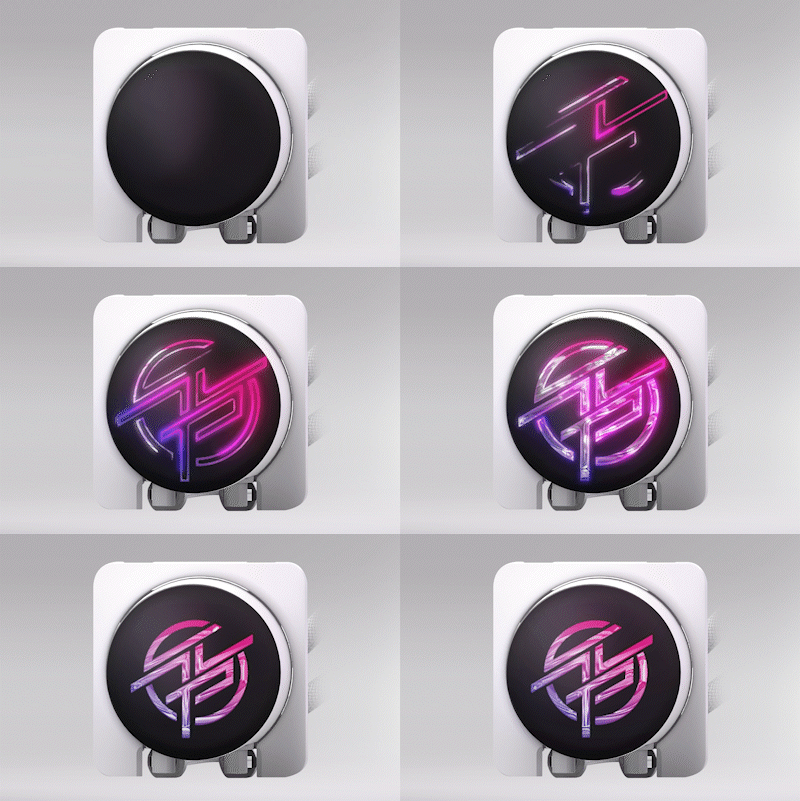
Once you’re in Windows, you can use MSI Center (navigate to EZ Display) to play custom animations via Extended Mode to match your build’s theme or your space, or if you’re a content creator, to display your own logo.
The HUD: Real-Time Hardware Monitoring
You invested in a high-end GPU and monitor to experience gorgeous game worlds to their full extent, not to stare at a collection of numbers hovering near the periphery of your vision. With the MPG CORELIQUID P13’s 2.1-inch LCD, you can keep your game uncluttered and still keep tabs on performance and temperatures during an intense boss fight.
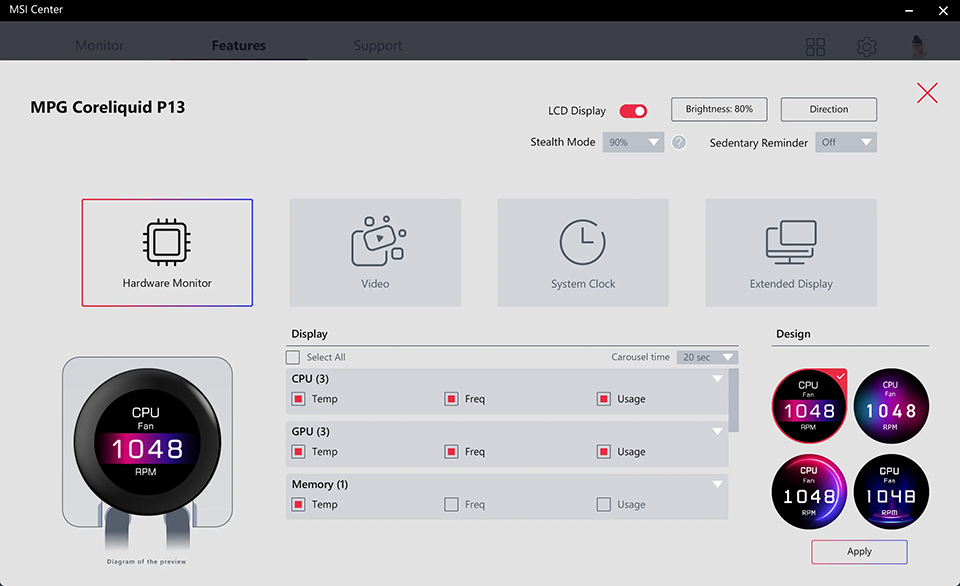
Simply pick what you want this screen to track and report within MSI Center, and the MPG CORELIQUID P13’s screen instantly turns into a super handy HUD that lets you check clock speeds, temperatures, RAM usage, and so much more at just a glance through your transparent side panel.
Functional Design and Aesthetics: A Clock and More
While you might use a HUD during gaming to make sure all is well with your hardware, you probably don't need to monitor your system temperatures when you’re just scrolling the web or responding to an email.
Staring at a static temperature readout when your system isn't breaking a sweat feels sort of pointless, doesn’t it? That’s exactly why you can set the MPG CORELIQUID P13’s 2.1-inch display to an elegant clock within MSI Center.
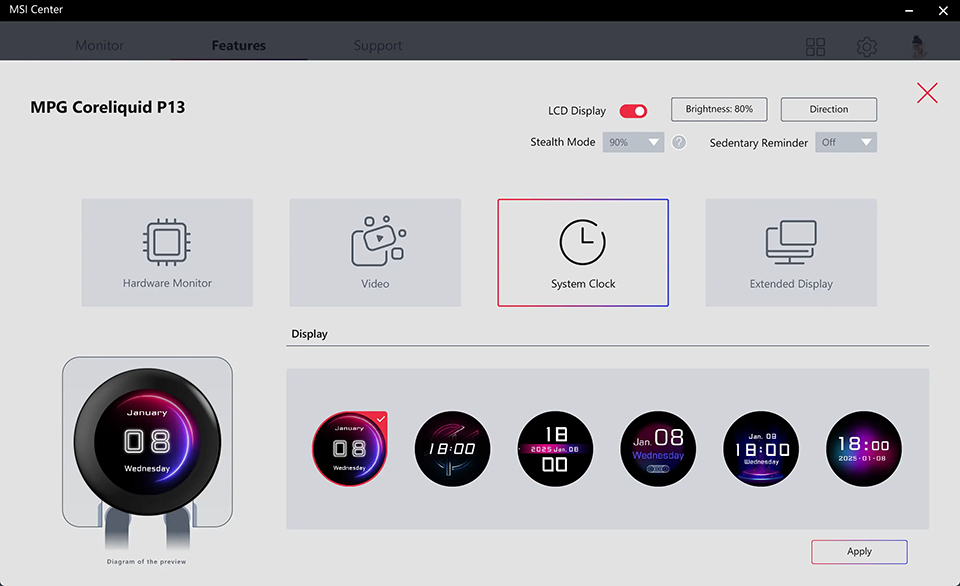
The time won’t just look like a readout on a monitor; thanks to the edgeless design of the MPG CORELIQUID P13. It looks stunning under the curved, seamless glass surface, and offers an excellent way to turn your gaming machine into a part of your room’s aesthetic instantly – while also adding genuine utility.
Entertainment or Branding: Playing Videos on Loop
Static images are fine, but motion is what injects life into a space. With the MPG CORELIQUID P13 LCD, you aren't limited to simple GIFs; you can actually stream video content from platforms like YouTube or BiliBili directly to the pump head.
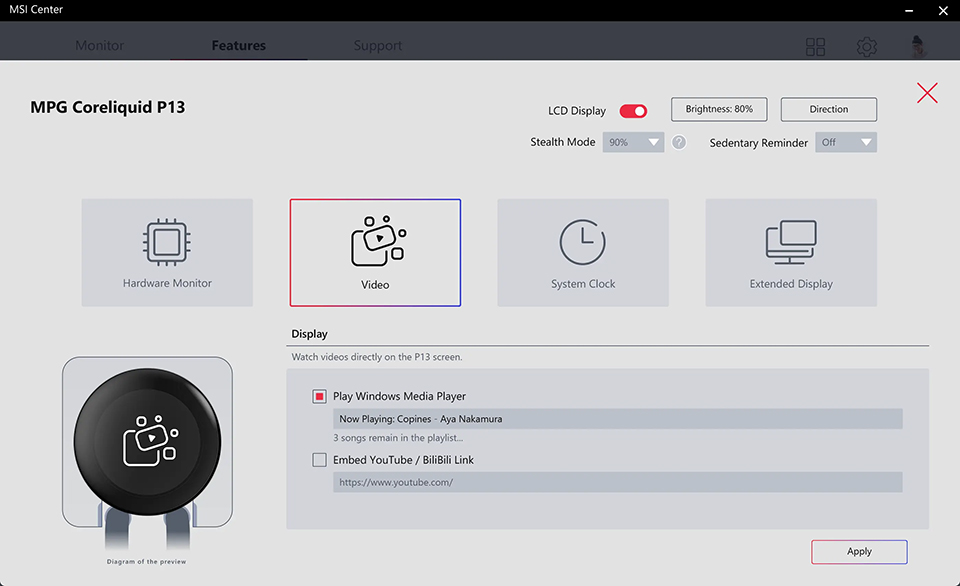
Use MSI Center’s EZ Display app to provide a link to the video you want to loop, and you’ll see the loop playing on its LCD!
MSI Center is set to loop a single video continuously when given a video link – making sure that the display stays focused on the specific content you picked, rather than jumping to random "Up Next" videos or autoplay suggestions that might ruin your setup's theme.
One More Display: It’s an Extension of Your Workspace
Although you can set the MPG CORELIQUID P13’s screen to display everything we’ve covered above, it can also act as a full-fledged secondary or even tertiary monitor by setting it to the Extended Display mode!
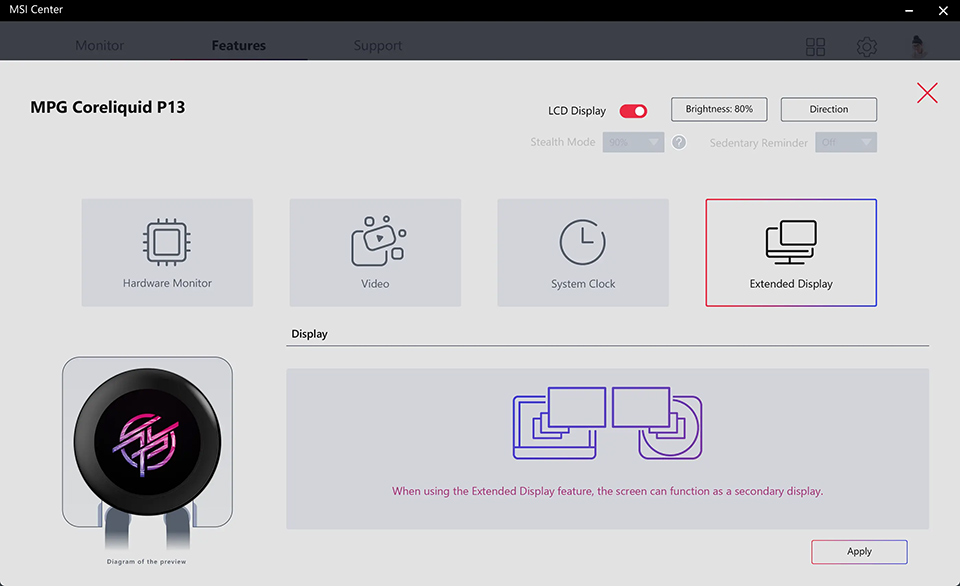
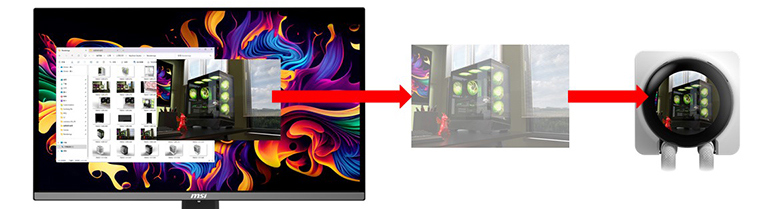
This allows you to drag and drop any window onto this screen. From a miniature discord interface to a Spotify Player, the options are endless.
Once you’ve positioned the window exactly where you want it, simply disable your cursor within MSI Center to prevent your pointer from veering off into your MPG CORELIQUID P13’s display when you’re in the middle of a gaming session or working with multiple windows/tabs.
PS. For the most seamless experience when using Extended Display mode, MSI recommends connecting your primary gaming monitor via HDMI.
Elevate Your Space with the MPG CORELIQUID P13 Series
The MPG CORELIQUID P13 Series is the latest evolution in our quest to harmonize software and hardware – allowing you to do more!
This evolution is about more than just cooling performance; it’s about giving you access to more powerful tools.
Whether you’re diving into setting up a real-time monitoring, using it as a secondary display, or just finding that perfect animated loop to match your room’s vibe, the MPG CORELIQUID P13 demands attention – elevating your space like never before.
You’ll need MSI Center version 2.0.65.0 or higher (download here: https://www.msi.com/Landing/MSI-Center) to unlock the full suite of personalization features built into the P13 and get the most out of it!
For more details about the MPG CORELIQUID P13 AIO Liquid Cooler, head to its product page here.
Frequently Asked Questions (FAQs)
Q: If I haven’t installed MSI Center, can I still use this liquid cooler?
A: Although basic cooling functionality works without MSI Center, we recommend installing MSI Center (version 2.0.65.0 or higher) to unlock and use all the features built into the MPG CORELIQUID P13 and its 2.1-inch LCD.
Q: How do I stop my mouse pointer from going onto the LCD?
A: When you use the P13 LCD in ‘Video Mode’, you can enable the ‘Cursor Lock’ option to prevent your pointer from moving into your P13’s display. On the other hand, in Extended Mode, the P13’s screen will behave as an extension of your primary display(s), including the ability to move your cursor within it – giving you the flexibility to set it up exactly how you want it.
Q: Does it matter if my main monitor is connected via HDMI or DisplayPort?
A: MSI recommends connecting your main monitor using HDMI when using extended display mode on the MPG CORELIQUID P13’s display for the best consistency and the most seamless experience possible on Microsoft Windows 11.
Q: Does the P13 LCD continue displaying what I picked even when I turn off my main display?
A: Yes, if you’re connected to your main monitor via HDMI. The P13’s LCD continues to display content that you configured within MSI center even when your primary monitor is turned off.
Q: When I play a YouTube video on the MPG CORELIQUID P13’s 2.1-inch display, will it show ads or move to the next video?
A: MSI Center is configured to play any videos on a single loop – ensuring that no other videos will start playing without you specifically adding a link to them within MSI Center. Ads behavior follows YouTube’s policies in your region, which means ads may appear for non-Premium accounts. For the best experience with looping videos, MSI recommends using a YouTube Premium account.
Q: What will I see if I haven’t installed MSI Center?
A: If you don’t have MSI Center installed, the MPG CORELIQUID P13 will just loop its startup animation. If you want to personalize this behavior, you will need MSI Center (version 2.0.65.0 or higher). Official download link here: https://www.msi.com/Landing/MSI-Center