How to Enable Secure Boot and TPM 2.0 on MSI AM4 Motherboards
Motherboards
The upcoming Battlefield 6 and Call of Duty: Black Ops 7 will require systems to have Secure Boot and TPM 2.0 enabled in order to prevent low-level cheating software. If these features are not enabled, you will see a message indicating that your system does not meet the security requirements when launching the game.
On more recent platforms such as X870, X670, B850, and B650, Secure Boot and TPM 2.0 are enabled by default. Since these features are also required for installing Windows 11, user running Windows 11 generally do not need to make additional changes.
However, if you are still using an AM4 motherboard with Windows 10, Secure Boot and TPM 2.0 may not be enabled. Before enabling Secure Boot, you must check your current system configuration, such as disk partition style and BIOS mode, to ensure they meet the requirements for Secure Boot.
If they do not, you need to adjust the related settings first; otherwise, enabling Secure Boot directly may cause Windows to fail to boot.
Secure Boot System Requirements
- Partition Style: Must be GPT (GUID Partition Table). If the disk is MBR (Master Boot Record), it must be converted to GPT.
- BIOS Mode: Must be UEFI. If it is set to Legacy or CSM, it must be switched to UEFI.
- Only when these conditions are met can Secure Boot be successfully enabled.
Additionally, to ensure the best compatibility between games and Secure Boot/TPM 2.0, MSI has released the latest BIOS updates for AM4 motherboards, including an updated AMD fTPM version. We recommend updating the BIOS to ensure a better gaming experience.
Steps to Enable Secure Boot
- Verify that the system disk is using GPT partition style. If it is MBR, use the Windows built-in MBR2GPT tool to convert it.
- Switch the motherboard BIOS mode from CSM to UEFI.
- Enable Secure Boot.
How to Check Secure Boot Status and BIOS Mode
Before making any changes, check your system configuration:
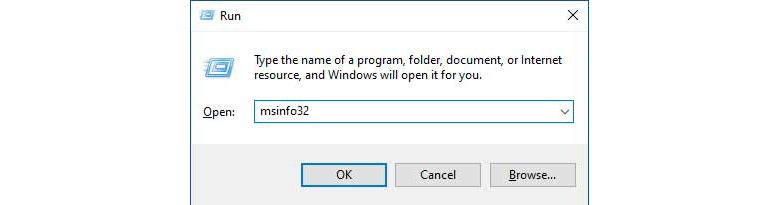
- In Windows, press [Win] + [R], then type msinfo32.
- In the System Information window, check:
- BIOS Mode: Shows whether the system is running UEFI or Legacy. If it is Legacy, you must switch to UEFI.
- Secure Boot State: Shows whether Secure Boot is enabled.
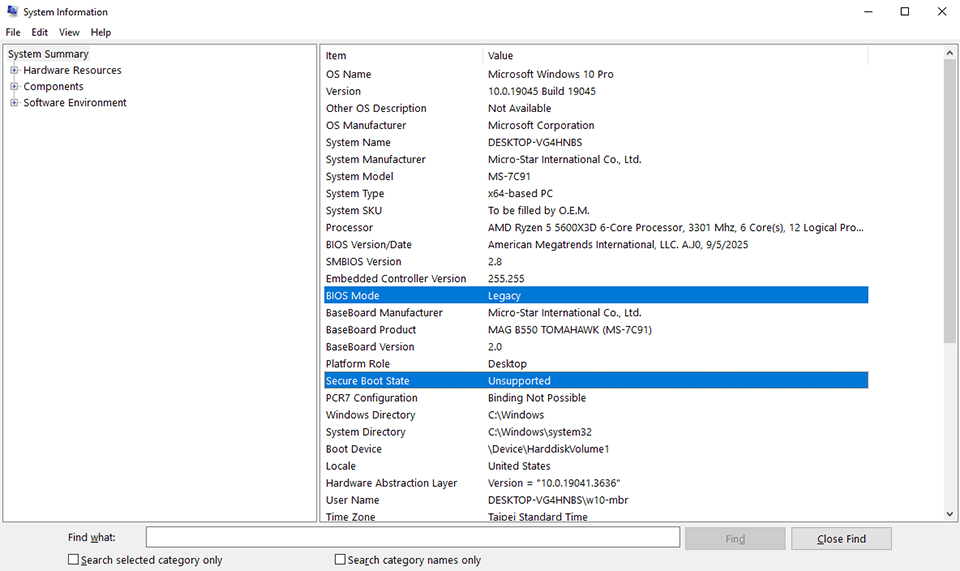
▲BIOS Mode: Legacy. Secure Boot not enabled.
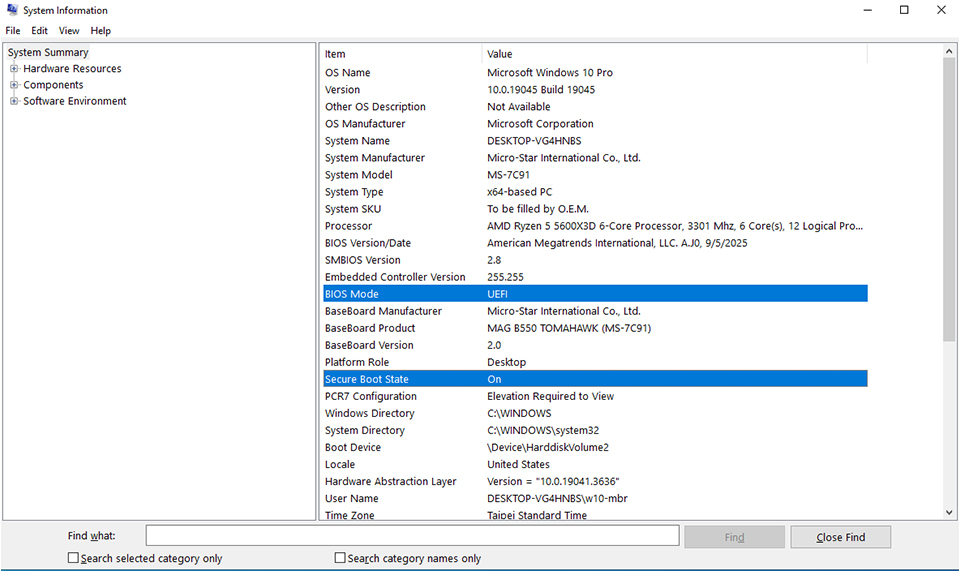
▲BIOS Mode: UEFI. Secure Boot enabled.
How to Check Disk Partition Style
- Open Disk Management, right-click on the target disk, and select Properties.
- Under the Volumes tab:
- If it shows GPT: Meets the requirements.
- If it shows MBR: Conversion to GPT is required.
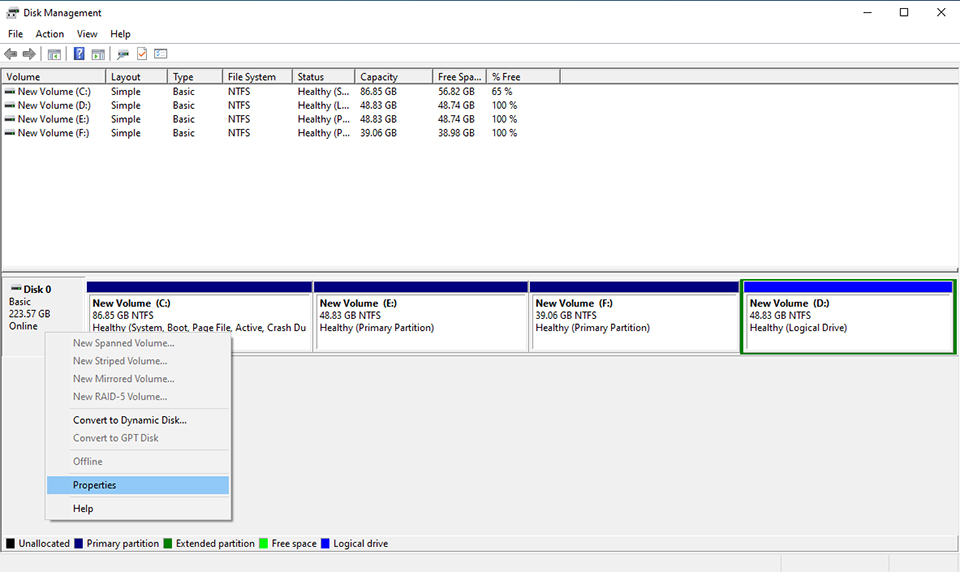
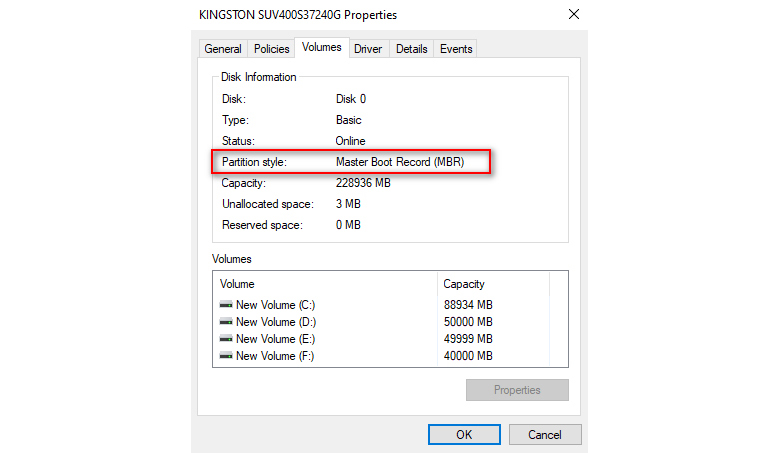
▲Partition style is MBR. Conversion to GPT is required.
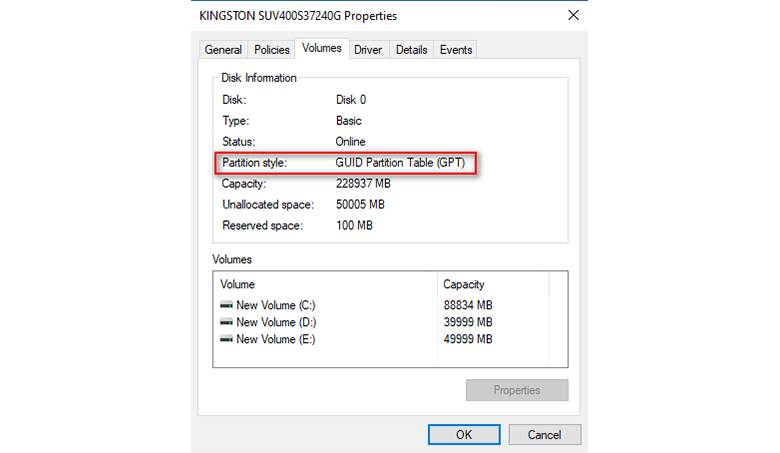
▲Partition style is GPT.
How to Secure Boot and TPM 2.0
Converting MBR to GPT (if necessary)
If your disk is MBR, you can use the built-in Windows MBR2GPT command-line tool:
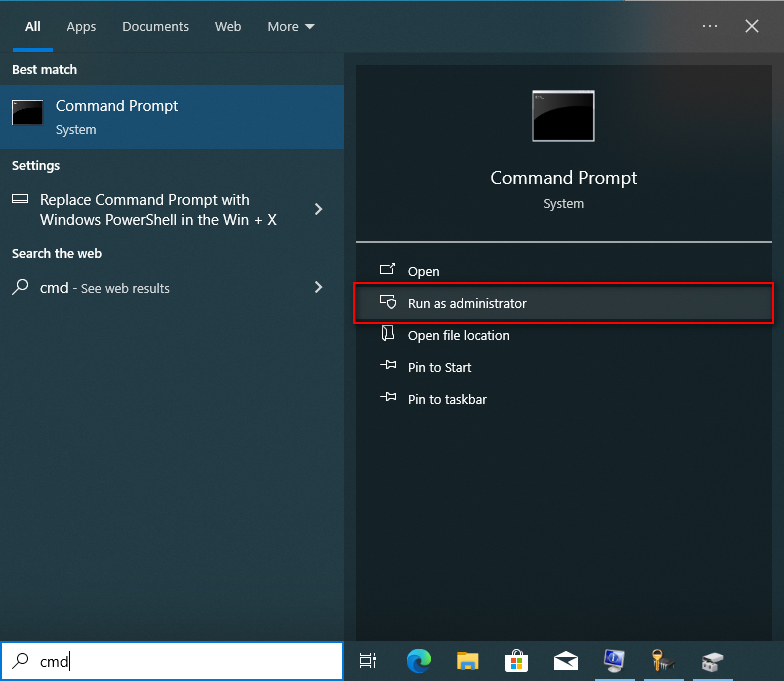
- In the Windows search bar, type CMD, then run Command Prompt as administrator.
- Enter the following commands:
- mbr2gpt /validate /allowFullOS to check if the disk can be converted
- mbr2gpt /convert /allowFullOS to perform the conversion.
- Note: MBR2GPT only supports disks with up to three partitions. If your disk has more than three, the conversion will fail. Backup your data and remove extra partitions before proceeding.
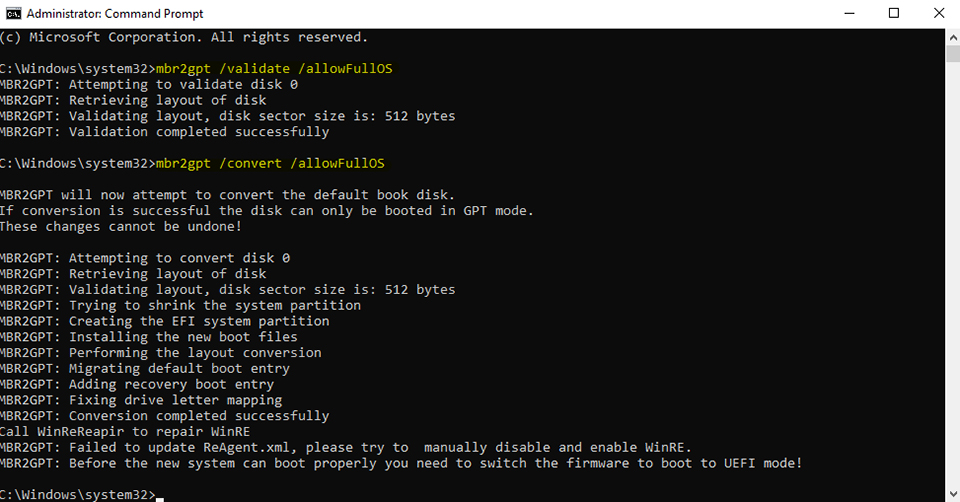
▲You can use MBR2GPT to validate the disk and convert MBR to GPT.
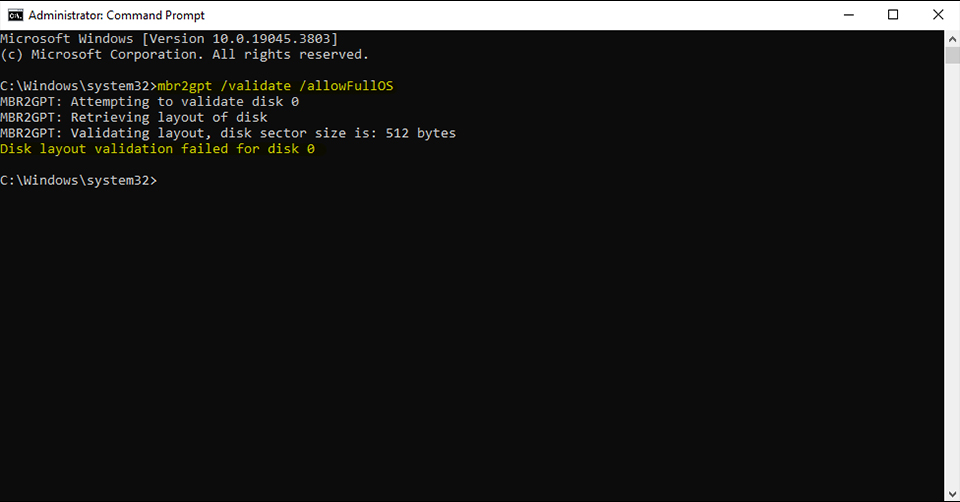
▲Disk layout validation fails when you have more than three partitions.
Switching to UEFI Mode and Enabling Secure Boot in BIOS
Using the MSI MAG B550 TOMAHAWK as an example:
- Make sure your disk partition style is already GPT.
- Enter the BIOS and switch BIOS CSM/UEFI Mode to UEFI.
- Navigate to the Secure Boot menu, enable it, then press F10 to save and reboot.

▲Go to Settings\Advanced\Windows OS Configuration, and switch BIOS CSM/UEFI Mode to UEFI.
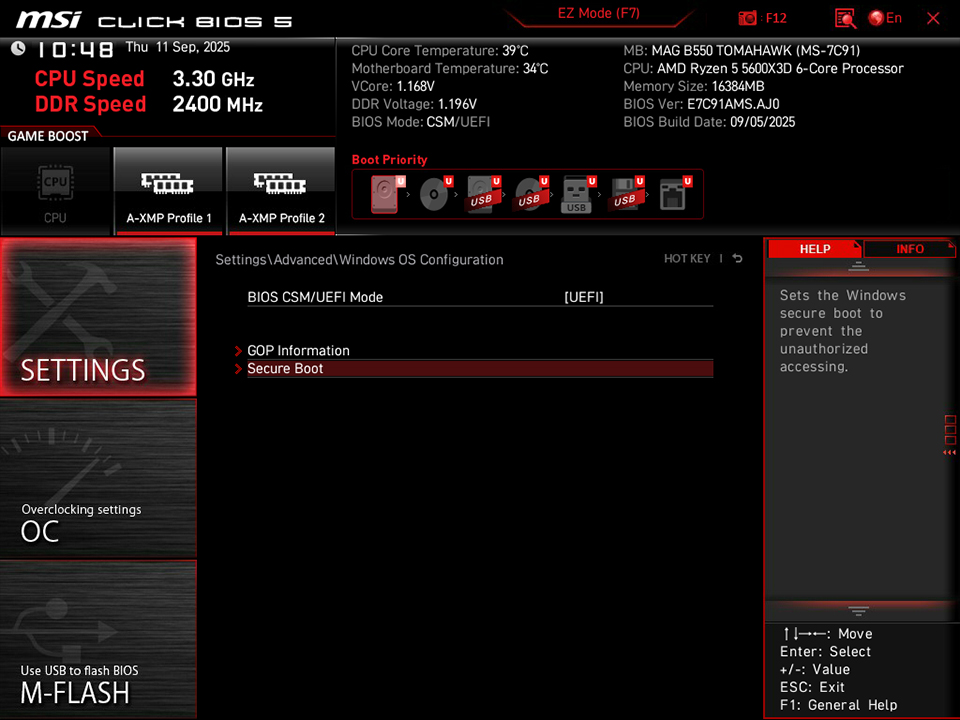
▲After switching to UEFI, the Secure Boot option will appear.
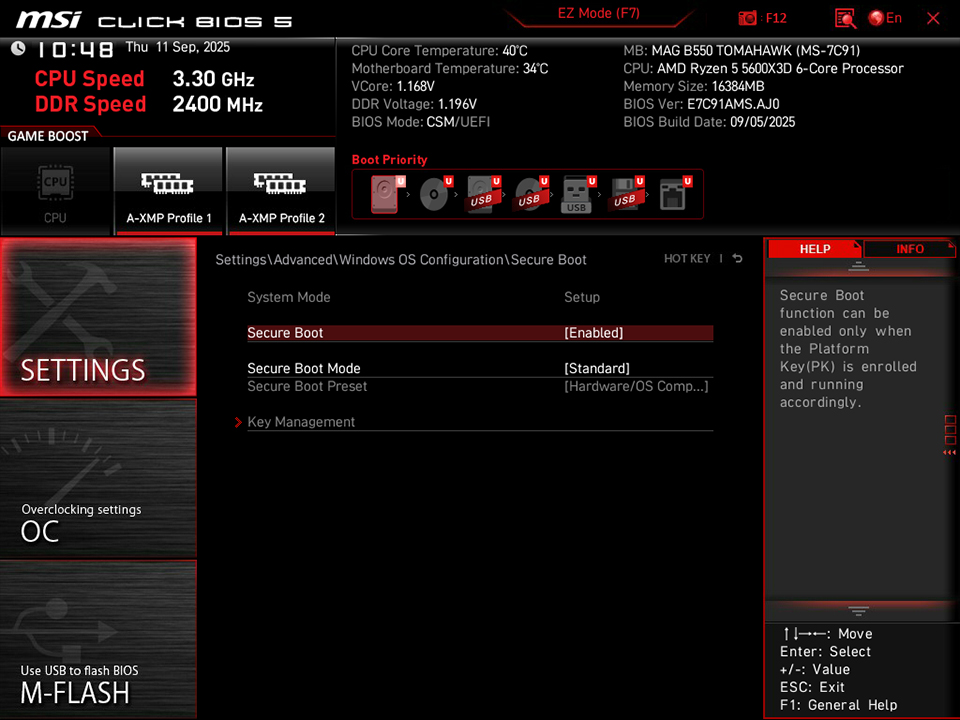
▲Enable Secure Boot, save changes, and reboot.
Checking TPM Status
- In Windows, press [Win]+[R], type tpm.msc, and press Enter.
- You will see the status and version information.
- If TPM is not enabled, you will see “Compatible TPM cannot be found”.
- If TPM is enabled, you should see AMD fTPM 2.0 listed.
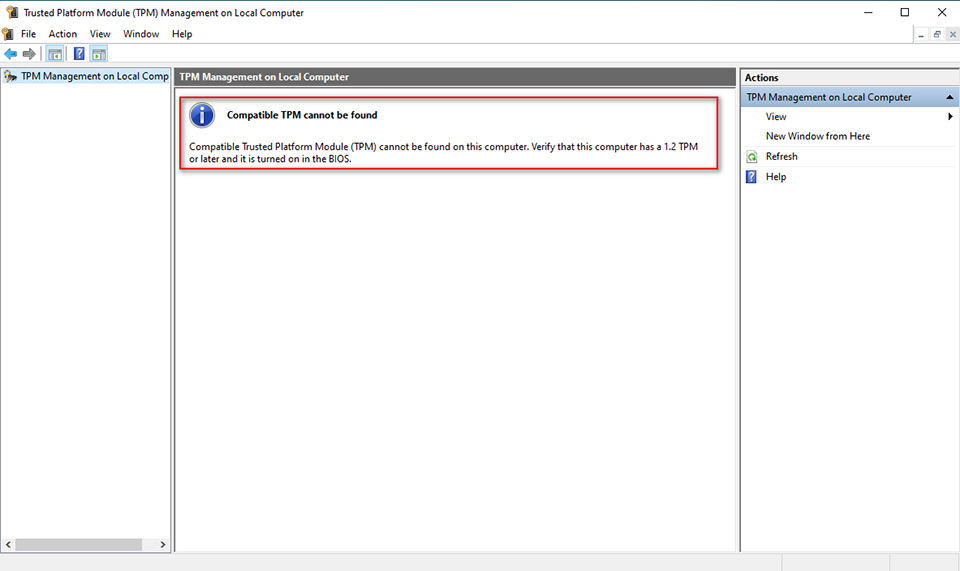
▲TPM not found
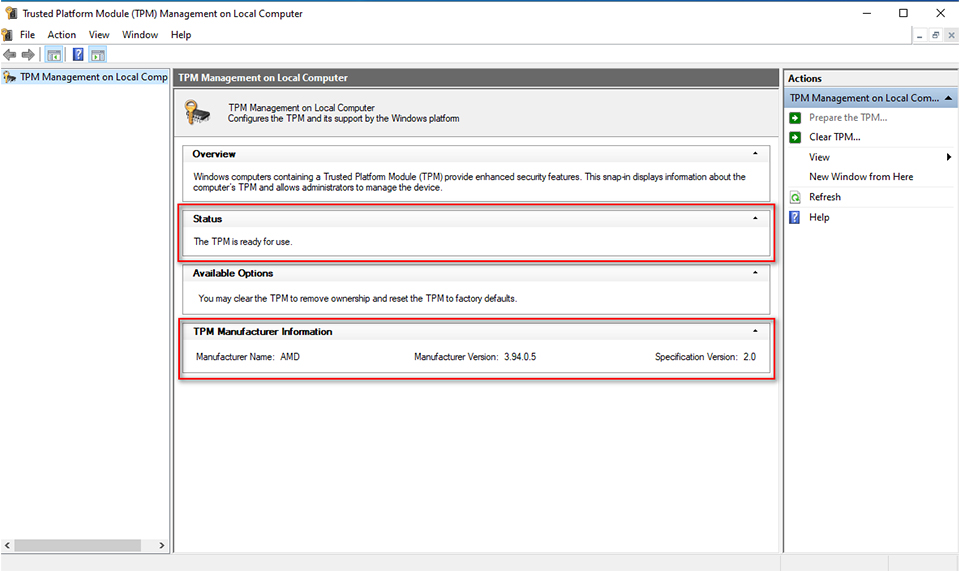
▲AMD fTPM is enabled.
How to enable TPM in BIOS
Using the MSI MAG B550 TOMAHAWK as an example:
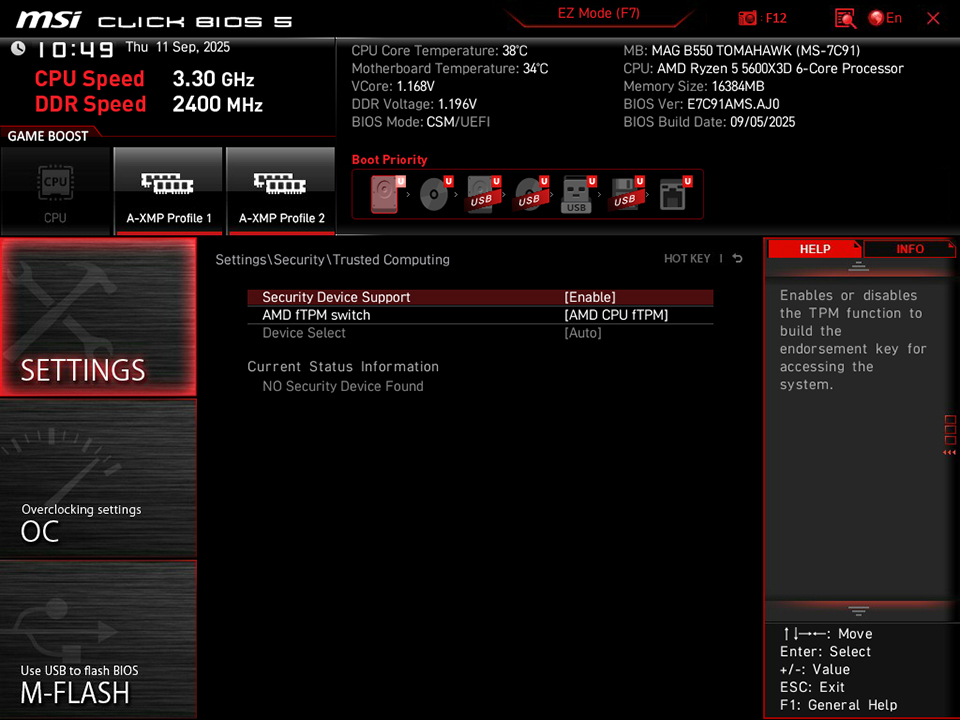
- Enter BIOS and go to Settings → Security → Trusted Computing.
- Enable Security Device Support.
- Press F10 to save and reboot.
Recommendation: Update BIOS and AMD fTPM
To ensure optimal compatibility between games and Secure Boot/TPM 2.0, MSI has released the latest AM4 motherboard BIOS and updated AMD fTPM.
We recommend updating the BIOS before installing Battlefield 6 or Call of Duty: Black Ops 7 for a better gaming experience.
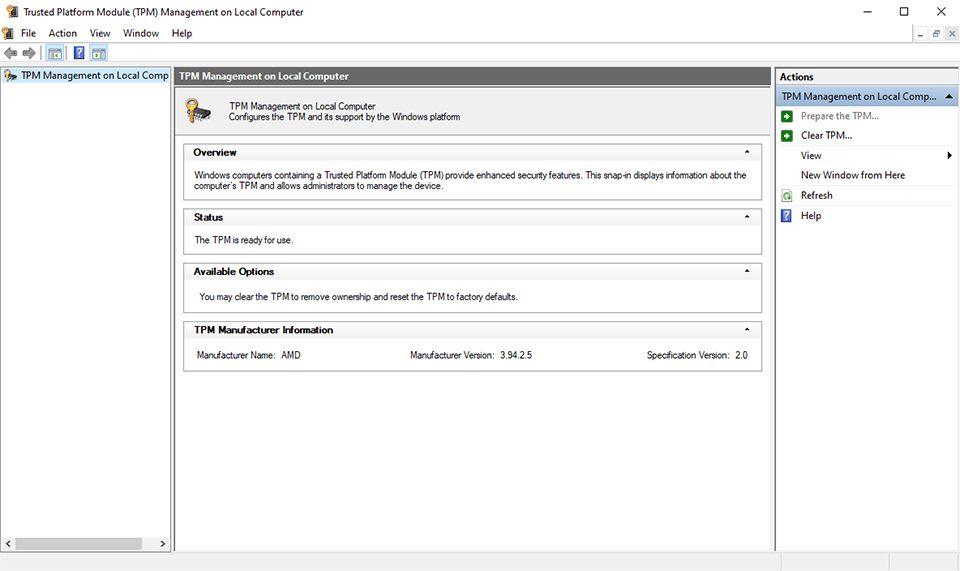
▲After updating the BIOS, AMD fTPM is upgraded to 3.94.2.5.
How to Enable TPM on MSI Motherboards Featuring TPM 2.0: https://www.msi.com/blog/How-to-Enable-TPM-on-MSI-Motherboards-Featuring-TPM-2-0